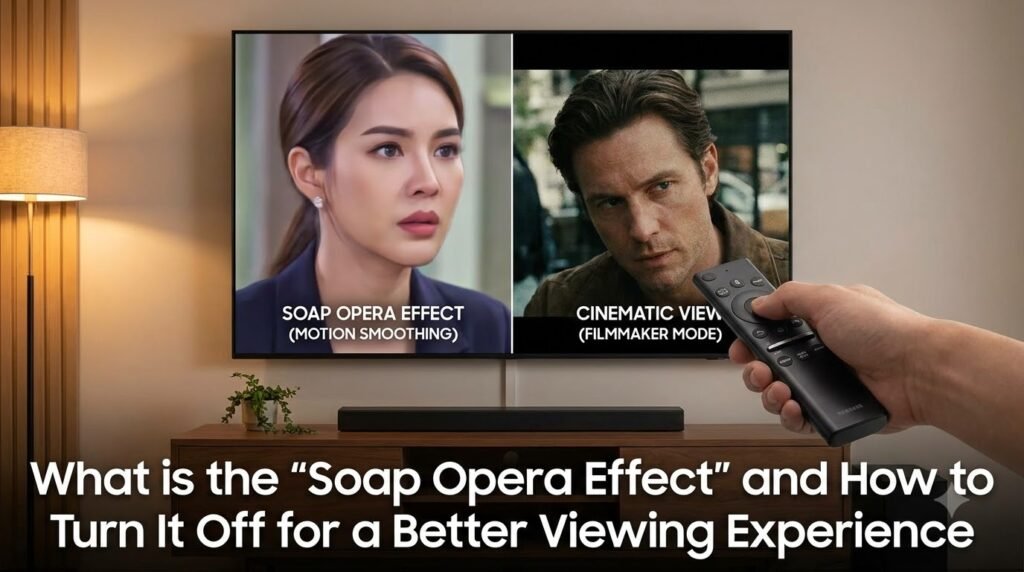
What is the “Soap Opera Effect” and How to Turn It Off for a Better Viewing Experience
You’ve just bought a brand new, state-of-the-art TV. You settle in to watch your favorite movie, expecting a cinematic experience, but something feels off. The film looks strangely smooth, almost too real, like a cheap daytime soap opera or a home video, rather than the grand production you remember. If this sounds familiar, you’re likely experiencing what’s widely known as the “Soap Opera Effect” (SOE). This common phenomenon can be jarring and detract significantly from your viewing pleasure, especially when watching films, dramas, or high-quality TV series. But what exactly is this effect, why does it happen, and most importantly, how can you turn it off? This guide will demystify the “Soap Opera Effect” and provide clear, actionable steps to restore your cinematic viewing experience.
What Exactly is the “Soap Opera Effect”?
The “Soap Opera Effect” is the popular term for motion interpolation, a picture processing technology found in most modern high-definition and 4K televisions. Its primary goal is to make fast-moving images appear smoother and reduce motion blur. While this might sound beneficial, it often results in an unnatural, overly fluid look that many viewers find unpleasant, especially for content originally filmed at lower frame rates.
The Technical Explanation: Motion Interpolation
At its core, motion interpolation works by generating and inserting artificial frames between the original frames of a video signal. Most movies and many TV shows are filmed at 24 frames per second (24fps), a standard that has been in place for nearly a century. This lower frame rate contributes to the classic “film look” — a subtle choppiness or judder that our brains have come to associate with cinema.
Modern TVs, especially those with 120Hz or higher refresh rates, are designed to display content at much higher frame rates (e.g., 60fps or 120fps). To bridge the gap between a 24fps source and the TV’s higher refresh rate, the TV’s processing unit creates intermediate frames. For example, if a TV is displaying a 24fps movie at 120Hz, it will insert four new frames for every original frame, effectively turning 24fps into 120fps. This process is known by various brand-specific names like “TruMotion” (LG), “Auto Motion Plus” (Samsung), “MotionFlow” (Sony), “Clear Action” (Vizio), “Action Smoothing” (TCL), or “Motion Enhancement” (Hisense).
Why Do TVs Have This Feature?
TV manufacturers include motion interpolation for several reasons:
Reduce Motion Blur: For fast-paced content like sports or video games, motion interpolation can indeed make the action appear smoother and clearer, reducing blur during quick camera pans or rapid movements.
Enhance Perceived Sharpness: By smoothing out motion, some viewers perceive the image as sharper and more detailed, particularly in scenes with a lot of movement.
Marketing: High refresh rates and advanced motion processing are often touted as premium features, leading consumers to believe they are getting a superior picture quality.
Why It Looks “Wrong” to Many Viewers
While the technology aims to improve image fluidity, it often backfires for cinematic content. Our brains are accustomed to the distinct visual language of film, characterized by its 24fps “cinematic judder.” When motion interpolation artificially smooths this out, it strips away that familiar film aesthetic, making movies and TV dramas look like they were shot on a video camera, similar to live broadcasts, reality TV, or, indeed, daytime soap operas. This disconnect between the intended artistic look and the TV’s processing creates the unsettling “Soap Opera Effect.”
How to Identify the “Soap Opera Effect” on Your TV
Identifying the “Soap Opera Effect” is usually straightforward once you know what to look for.
- Overly Smooth Motion: The most obvious sign is that everything moves with an unnatural, almost hyper-real smoothness. Characters might glide across the screen rather than moving with the subtle, natural cadence of film.
- “Video” Look: Movies, especially older ones or those known for their cinematic quality, will suddenly resemble live television broadcasts or amateur video recordings.
- Loss of Cinematic Feel: The dramatic weight and artistic intent of a scene can be diminished when the motion is artificially smoothed, losing the subtle imperfections that give film its character.
- “Jittery” Artifacts: In some cases, especially with complex scenes or fast motion, the interpolation can introduce visual artifacts like halos around moving objects or a subtle “jitter” as the TV struggles to create plausible intermediate frames.
How to Turn Off the “Soap Opera Effect” (The Core Solution)
Turning off the “Soap Opera Effect” is often one of the first adjustments new TV owners make. The good news is that it’s usually a simple process, though the exact steps and terminology vary by brand.
General Steps for Most TVs
1. Access Picture Settings: Using your TV remote, navigate to the main “Settings” menu. Look for a section related to “Picture,” “Display,” or “Video.”
2. Locate Motion Settings: Within the picture settings, you’ll need to find a sub-menu dedicated to motion enhancement. This is where the brand-specific names come into play.
3. Disable or Minimize: Once you find the relevant setting, you’ll typically have options to turn it “Off,” “Low,” or set it to a specific “Film Mode” or “Cinema Mode.” Always choose “Off” or the most minimal setting to eliminate the SOE.
Brand-Specific Terminology
Here are common names for motion interpolation features by popular TV brands in the US:
- LG: Look for “TruMotion” under Picture Settings > Picture Mode Settings > Picture Options. Set it to “Off” or “Cinema Clear” (which is less aggressive than “Smooth”).
- Samsung: Search for “Auto Motion Plus” under Picture Settings > Expert Settings. Set it to “Off” or choose “Custom” and set both “Blur Reduction” and “Judder Reduction” to 0.
- Sony: Find “MotionFlow” under Picture Settings > Advanced Settings > Motion. Set it to “Off” or “True Cinema.”
- Vizio: Check for “Clear Action,” “Motion Control,” or “Smooth Motion Effect” under Picture Settings > Advanced Picture. Turn it “Off.”
- TCL (Roku TVs): Go to Picture Settings > Advanced Picture Settings > Action Smoothing (or Motion Smoothing). Set it to “Off.”
- Hisense: Look for “Motion Enhancement” or “Motion Smoothing” under Picture Settings. Turn it “Off.”
- Panasonic: Search for “Intelligent Frame Creation” or “Motion Smoother.” Turn it “Off.”
Check Each Input Source
It’s crucial to remember that picture settings, including motion interpolation, are often applied per input. This means if you turn off the SOE for your cable box (HDMI 1), it might still be active when you switch to your Blu-ray player (HDMI 2) or a streaming app built into the TV. You’ll need to repeat the process for each input you use regularly.
Consider “Filmmaker Mode” or “Cinema Mode”
Many newer TVs include a “Filmmaker Mode” or a dedicated “Cinema” or “Movie” picture mode. These modes are designed to disable most post-processing enhancements, including motion interpolation, and aim to display content as the creators intended. If your TV has one, selecting it is often the quickest way to achieve a more authentic cinematic look.
What Happens After You Turn It Off?
Once you’ve successfully disabled motion interpolation, you’ll notice an immediate change. Movies and dramas will regain their natural 24fps “film look.” The subtle judder that’s characteristic of cinema will return, and the hyper-real, video-like smoothness will disappear. You might initially perceive a slight difference in motion fluidity compared to the interpolated image, but for most viewers, this quickly feels natural and far more aesthetically pleasing for narrative content.
Should You Ever Keep It On?
While generally disliked for movies and TV shows, motion interpolation isn’t entirely without its uses:
- Sports: For fast-action sports, some viewers prefer the added smoothness and clarity that motion interpolation provides, as it can reduce blur and make the ball or players easier to track.
- Video Games: While many gamers prefer to disable all post-processing for minimal input lag, some casual gamers might appreciate the smoother motion in certain games, especially those running at lower frame rates.
- Live Broadcasts/News: Content that is already shot at higher frame rates (e.g., 30fps or 60fps) for live broadcast might benefit marginally from the effect, though it’s still largely a matter of personal preference.
Ultimately, whether to use motion interpolation is a personal choice. However, for anyone seeking to enjoy films and cinematic television as their creators intended, turning off the “Soap Opera Effect” is almost always the recommended approach.
Conclusion
The “Soap Opera Effect,” or motion interpolation, is a ubiquitous feature in modern televisions designed to enhance motion fluidity. While its intentions are good, it often distorts the intended artistic look of movies and TV shows, making them appear unnatural and resembling low-budget video productions. Understanding what this effect is and knowing how to disable it is key to unlocking the true cinematic potential of your television. By following the general steps and brand-specific guidance provided, you can easily turn off the “Soap Opera Effect” and reclaim the authentic, immersive viewing experience that films and high-quality series deserve. Don’t let your state-of-the-art TV compromise your entertainment; take control of your picture settings and enjoy your content the way it was meant to be seen.
Q&A & Discussions (0)